
Overview
This documentation portal is intended exclusively for Lowe’s Marketplace sellers using the Mirakl platform. Its purpose is to help you get acclimated to the Mirakl environment and provide clear, actionable guidance on all processes and requirements related to onboarding, item setup, and order management within Mirakl.
Only Mirakl-related functionality and topics are covered here. Any documentation that is not specific to Mirakl, including other seller systems or Lowe’s internal tools, will be shared through separate channels within the Lowe’s Marketplace ecosystem.
Please refer to this portal as your single source of truth for Mirakl-based onboarding and integration.
Introduction to Marketplace
topics: Mirakl, Onboarding, Seller PortalWelcome to the Lowe’s Marketplace Seller Portal, powered by Mirakl. We’re excited to partner with you as you bring your products to millions of customers across Lowes.com. This documentation will walk you through everything you need to know to onboard successfully - from product setup to offer management, shipping expectations, and policy references.
Lowe’s Marketplace is a curated extension of our e-commerce experience, enabling trusted third-party sellers to expand product assortment across categories such as tools, lighting, home décor, and more.
Accessing Mirakl back office
You should have received your Welcome Email from the Lowe’s Business Development team once your seller account is approved. This email will contain:
- Your Mirakl Seller back office access link
- Initial onboarding steps and documentation

About this Guide
This documentation covers:
- How to onboard with Mirakl
- Product and offer data requirements
- Feed templates for Excel uploads
- API usage (for technical teams)
- Reference guides for titles, barcodes, attributes, and more
As you move through onboarding, Lowe's Marketplace Team recommends reviewing each section in sequence. You’ll also find downloadable templates and helpful screenshots throughout to walk you through common workflows.
Onboarding with Mirakl
topics: Seller Portal, Onboarding, ExcelOnce you’ve been approved to join Lowe’s Marketplace, your onboarding journey begins in the Mirakl Seller Portal. This section will guide you through the initial steps of getting set up, uploading your first products, and preparing your store to be open.
Step 1: Receive Your Welcome Emails
After Business Development approves your account, you will receive two separate welcome emails to help you begin onboarding
-
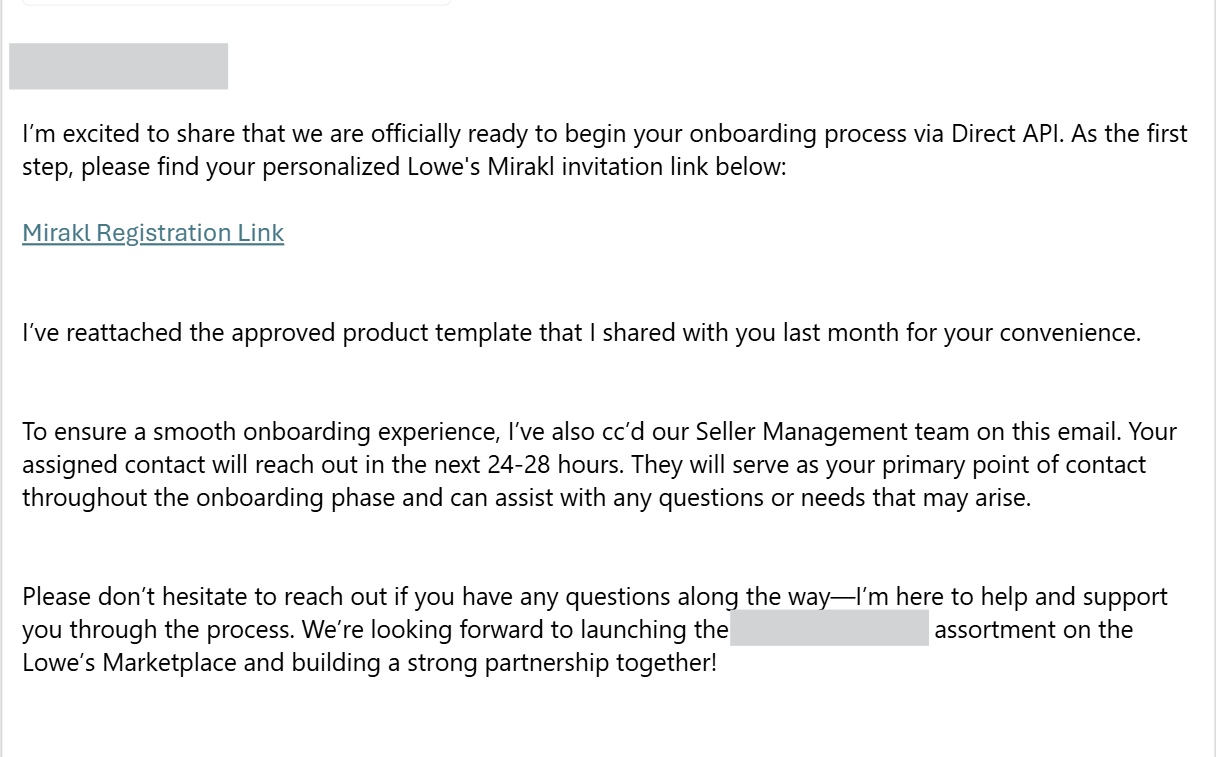
Business Development Invitation Email
Sent by your Lowe’s Marketplace Business Development representative, this message acts as a hand-off and includes:
- Your unique login link to the Mirakl Seller Portal
- Your approved product import template
- Notification that a Seller Management Specialist (SMS) will be reaching out shortly
-
Seller Management Specialist Welcome Email
Within 1 business day, your assigned Seller Management Specialist will email an introduction and next steps:
- Complete Store Account details in Mirakl (all fields + contacts)
- Confirm your integration method
- Confirm estimated SKU count
- Upload required documentation

If a Seller Management Specialist has not reached out within 1 business day of your Welcome Email, please reach out to your Business Development rep to confirm next steps.
Step 2: Log into the Mirakl Seller Portal
Follow the link in your Welcome Email and log in using the credentials provided. Once inside, you’ll land on your Seller Dashboard — the control center for your Marketplace activity.
From here, you can:
- Manage and upload your product offers
- Monitor and process orders
- Set up shipping and returns policies
- Access API settings and credentials

Step 3: Complete Initial Account Setup
Before importing products or connecting to APIs, you must configure your account preferences. Lowe's Marketplace Team recommends completing the following:
| Setup Task | Description |
|---|---|
| Company Info | Verify your business name, support contacts, and legal entity information. |
| Shipping Configuration | Define your shipping methods, delivery times, and carrier options. |
| Return Policy | Enter your return window and restocking fee (if applicable). |
| Bank Info / Payment Details | Ensure your payout account is connected and verified. |
| Customer Service Contacts | Assign email and/or phone contacts visible to customers. |
Product uploads cannot proceed until basic configurations (shipping, returns) are completed.

Step 4: Upload Your First Products
Once you seller profile is completed in Mirakl and your Store is "Opened", your assigned Seller Management Specialist will email an item onboarding notification that will include:
- A recommendation to start with your top 10 highest GMV items for initial setup and monitoring
- A request to confirm how many items will be included in your initial load
- Best practices for Content Quality, Digital Assets, and impact of product completeness

Next steps to take in your Mirakl back-office:
- Download the Lowe’s-specific product import template (navigate to "Templates and documents" shown below).
- Populate the required attributes for your listings in the downloaded template.
- Upload your completed Excel file directly in the Mirakl Portal.
- Review any validation feedback or errors, and correct as needed.
- Once approved, your listings will become eligible for publishing to Lowes.com.
You can upload offers manually, via Excel templates, or programmatically using the Mirakl API.

Step 5: Monitor Integration & Progress
During onboarding, the Lowe’s Marketplace Team will work with you to validate the following:
- Product content completeness
- Brand, image, and category accuracy
- Item legal compliance
- Readiness for order flow testing
When your uploaded products pass all Mirakl and Lowe's validations, all of your items will go through the Lowe's buying decision process.
Once a buying decision is made on your items, a Lowe's SKU will generate and become visible to you in your Mirakl Catalog Manager for your items.
Required Attributes for Product Imports
topics: Attributes, Category, Template, ExcelTo ensure your products are listed accurately and meet Lowe’s Marketplace standards, all product uploads must include specific required attributes. These fields allow us to validate your product data, match it to the correct categories, and ensure a smooth publishing process.
Whether you're uploading products using an Excel template or via API, the required fields must be filled out completely and accurately to avoid delays or rejections.
Where to Start
Before importing your first product file:
- Ensure you’ve completed your account setup (shipping, returns, tax), and have been notified your Store is now open for Item Onboarding.
- Review the Product Import Template downloaded from your Mirakl back-office.
- Prepare your catalog by populating each required field per product.
Core Required Attributes
Here is an overview of the minimum required fields in the product import process:
| Logical Name | Business Name | Description | Acceptable Values |
|---|---|---|---|
| productCat | Product Category | The category in which the product should fall within the online hierarchy. This is not associated to the assortment or product group but instead the logical ranking of the product based on what it is. The corresponding attributes to the items will reside in the marketing category. | Prompting to available categories per assortment/PG; need mapping exercise between MKT category Assortment; churn should be reduced post decoupling effort |
| modelNum | Model Number | Manufacturer’s Model number used for critical functionality within Lowes Marketplace. This value is required and must be unique to the product and barcode and is not editable after product creation. Characters allowed: Alpha/Numeric and # $ & ( ) + , - . / [ ] = Characters NOT allowed: [®™©~!@%^*_?""|""{}<>\"\\n]*$ | |
| brand | Brand | Identity given to a specific product by a Seller, distinguishing the product from others in the market and creating recognition with consumers. Brand will be included in the Product Title automatically. | Values from the Lowe's Master Brand List |
| title | Product Title | Official name given to a product. Serves as a key identifier and helps customers quickly understand what a product is. A well-crafted product title is concise yet informative, uses relevant keywords for searchability, and boosts search rankings. Characters Not Allowed: [\n~!@$^&*_?""|""{}<>\"®™©%,\r]*$ | |
| productDesc | Lowe's Product Description | Content written to promote a product, outlining the product’s main features, emphasizing benefits and unique selling points. Use engaging language that is optimized for search engines. Characters Not Allowed: [\n~!@$^&*_?""|""{}<>\"®™©%,\r]*$ and all CAPS. | |
| frontFacingImage | Front Facing Image | The primary image that is the front facing view of the product | |
| detailedProductViewTwo | Detailed Product View 2 | Product Image 2 | |
| detailedProductViewThree | Detailed Product View 3 | Product Image 3 | |
| sellingUOM | Selling Unit of Measure | The measurement used to sell the trade item such as each, pair, case, roll, set box, etc. A trade item may have only one Selling Unit of Measure. However, a trade item may be ordered by one unit of measure and sold by another. | Bundles,Bags,Boxes,Cases,Cu. Feet,Cards,Cartons,Hundred lbs.,Display (Pre-Assembled Unit),Each,Feet,Hundred Feet,Kits,lbs.,Linear Foot,Mod Pallet (Mixed),oz.,Pieces,Packs,Packages,Pallets,Net lbs.,Pair,Rolls,Sq. Feet,Sets,Thousand Feet,Trays,Units,NA |
| specialOrderLeadTime | Customer Order Lead Time | Customer ordering Lead-Time is an integer that states the lead-time required for orders. Conditionally required based on available packaging hierarchies and Available for Direct-to-Consumer = Yes | |
| specialOrderLeadTimeUOM | Customer Order Lead Time UOM | The unit of measure for Customer Order Lead Time. Conditionally required based on the item being Able to Ship Direct to Consumer or ONLY Able to Ship Direct to Consumer. | Days, Hours,Weeks, Months |
| barcodeType | Barcode Type | Classification of barcode type aligned with barcode number. Options include EAN13, EAN8, UPCA, UPCE and I2of5 | UPCA, UPCE, I2OF5, EAN13, EAN8 |
| barcode | Barcode | Seller provided consumer unit number that scans at the register for Seller returns. Acceptable barcodes are 8, 12, 13 and 14 digits. | |
| packagingType | Packaging Type | The code identifying the type of package used as a container of the trade item. | |
| depth | In Box Depth | The measurement from front to back of the item in it's packaging. Follow EAN.UCC Package Measurement Rules for Data Alignment. These are standards for measuring dimensions of the trade item. Required for collection at each packaging hierarchy level (example, in-package height for every available hierarchy: each, innerpack, master carton, pallet) | |
| width | In Box Width | The measurement from left to right of the item in it's packaging. Follow EAN.UCC Package Measurement Rules for Data Alignment. These are standards for measuring dimensions of the trade item. Required for collection at each packaging hierarchy level (example, in-package height for every available hierarchy: each, innerpack, master carton, pallet) | |
| height | In Box Height | The measurement of the height of the item in it's packaging. The vertical dimension from the lowest extremity to the highest extremity, including packaging. At a pallet level the trade item Height will include the height of the pallet itself. Required for collection at each packaging hierarchy level (example, in-package height for every available hierarchy: each, innerpack, master carton, pallet) | |
| dimUOM | Dimensions UOM | Unit of Measure associated with dimension values. | Centimeters, Feet, Inches, Linear Feet, Yards |
| grossWgt | Gross Weight | The weight of the product including all packaging materials. Required for collection at each packaging hierarchy level (example, in-package height for every available hierarchy: each, innerpack, master carton, pallet) | |
| wgtUOM | Weight UOM | The Unit of Measure for Gross Weight and Net Weight | lbs., Kilograms, oz., Grams, Milligrams |
| netContent | Net Content | The amount of the item as claimed on the label of the package. Conditionally required on level which is consumer units only. For example the value to put in this field for a can of cola is '12'. | |
| netContentUOM | Net Content UOM | Unit of measure to identify Net Content | |
| countryofOrig | Country of Origin | The country in which the goods have been produced or manufactured. | |
| containsWood | Contains Wood Indicator | Identifies the trade item as containing wood. | Yes, No |
| hazmatType | Hazmat Type | Hazardous Material indicator that will determine if the item contains materials that need further clarification for handling/shipping | Chemical;Battery or battery containing device, Fluorescent/CFL bulb of Fluorescent/CFL Bulb containing device, None of the above |
| sasRestrictions | Does Item have any Legal Selling, Age, or Shipping restrictions? | Indicator that will determine if item contains legal/compliance related shipping or selling restrictions. If yes, additional qualifying questions around shipping or selling restrictions will be required | Yes, No |
| manfWarrInd | Warranty | Warranty | |
| supplierBullet1 | Supplier Bullet 1 | Descriptive selling copy that highlights the features and benefits of your product. Limited to 254 characters | |
| supplierBullet2 | Supplier Bullet 2 | Descriptive selling copy that highlights the features and benefits of your product. Limited to 254 characters | |
| supplierBullet3 | Supplier Bullet 3 | Descriptive selling copy that highlights the features and benefits of your product. Limited to 254 characters | |
| pfasIntentionAdded | Are PFAS ("Perfluoroalkyl and poly fluoroalkyl substances") Chemicals Intentionally Added to the Product or Component? | Were PFAS intentionally added to the product? | Yes, No |
| cAResidentsProp65Warnings | CA Residents: Prop 65 Warning(s) | Qualifying attribute that designates if the product contains chemicals or materials known to the state of CA to cause harm | Yes, No |
| prop65WarningLabel | CA Residents: Prop 65 Asset | Associated digital asset loaded as a .pdf document that includes the Prop 65 warning requirement for display on Lowes.com. If Prop 65: Warning is YES, this attribute is required before an item can be sold on Lowes.com. | |
| pfasPurpose | Purpose of Use of PFAS in any Product Component. | From the options provided, populate with the value that best describes the reason for intentionally adding PFAS to the item. Choose 'Other' if no option effectively describes the intent. | Water Resistant; Stain Resistant; Oil Resistant; Non-Stick Surface; Other |
| pfasPurposeDesc | Description of "Other" PFAS purpose. | Provide a description that defines the reason for which PFAS were intentially added to the item. | Free Text |
| ppmExactQty | Enter the Exact Qty (PPM) of each PFAS-OR Total Organic Fluorine Qty (PPM). | Enter the Exact Qty (PPM) of each PFAS Listed in declaration of PFAS description/Chemical Abstracts Service (CAS) OR Enter Total Organic Fluorine Qty (PPM). If more than one | Free Text |
| casNumber | List the Chemical Abstracts Service (CAS) Number or Description for all PFAS Included. | Provide a list of all the Chemical Abstracts Service (CAS) Number for all PFAS Included (# form with dashes; Ex: 1763-23-1) | Free Text |
Common Mistakes to Avoid
To prevent import errors or item rejection, double-check your file for these common issues before uploading:
- Missing or invalid GTINs (UPC/EAN): Required for all products; must be globally unique and valid format.
- Incorrect or blank categories: Use the official category definitions provided by Lowe’s — don't add your own.
- Duplicate Seller SKUs: Once a SKU is used, reusing it for a different item will result in a conflict.
- Improper formatting: Avoid special characters (e.g., “$, %, &) in any required fields; follow the Core Required Attributes and attributes requirements within Mirakl.
- Placeholder images: Submitting generic or unfinished images will cause rejection. Include final front-facing product imagery.
Pro Tip: Always test with your top 10 GMV items first to validate structure and avoid large batch failures.
Data Flow Limitations Between Mirakl and Lowe’s
Not all changes made in Mirakl will sync to Lowe’s systems. Please review these important rules before updating your Store or Catalog data.
Store Data
- Once a Vendor Business Unit (VBU) is assigned, any edits to your Store profile (e.g., address, phone number, legal info) will not update in Lowe’s systems.
- To update Store information in Lowe’s, contact your Lowe's Marketplace point of contact.
Catalog Data
- After items are synchronized from Mirakl to Lowe’s, the following attributes are locked in Lowe’s systems:
- Model Number
- Barcode (UPC/EAN)
- Brand
- Editing these fields in Mirakl will not update the corresponding data on Lowes.com.
- If corrections are required, submit a case to Lowe's Marketplace Support.
What You Can Change
- Price
- Inventory/Stock levels
- Item descriptions and images (subject to Lowe’s moderation policies)
Enrichment Fields (Strongly Recommended)
While not required, enrichment attributes greatly improve your product visibility, conversion rates, and search placement on Lowes.com.
Some recommended enrichment fields:
- Bullet Point Descriptions – Short, scannable highlights of product benefits
- Color / Finish / Material – Helps with filtering and visual merchandising
- Certifications – EnergyStar, UL listing, ADA compliance, etc.
- Installation Details – Useful for categories like appliances or lighting
- Warranty Information – Especially for high-ticket or technical products
Conversion Impact: Sellers who complete enrichment fields often see a 45%+ improvement in conversion rates.
Excel Template Samples
topics: Onboarding, Template, ExcelLowe’s Marketplace supports product onboarding through flat file uploads using structured Excel templates. These templates are designed to simplify large-scale product imports — especially for sellers not using API integrations during onboarding.
This section provides an overview of which templates are used, how to fill them out correctly, and how to troubleshoot validation issues.
Downloadable Templates
You should have received your approved Product Import Template from your Business Development representative as part of your Welcome Email. If not, contact your Seller Management Specialist (SMS) before proceeding.
Common template types:
| Template Type | Purpose | Source |
|---|---|---|
| Product Import | Load new items with all required and optional attributes | Included in BD Welcome Email |
| Price Import | Update pricing without altering other item data | Provided by SMS (optional) |
| Offer Import | Update on-hand quantity for your SKUs | Provided by SMS (optional) |

How to Use Each Template
Product Import Template
Use this to create new product offers on Lowes.com. Each row represents one product (SKU).
- All required attributes must be included (see Section 3).
- Do not change column headers.
- Leave unused optional fields blank, not deleted.
- Save in .csv, .xlsx, or .xml format.
Price Import
Use to update pricing for SKUs that have already been imported.
- Fields typically include: SKU, price, discounts
- Allows promotional adjustments or batch price changes
Offer Import
Keep this updated to reflect your current stock.
- Set `Quantity = 0` to pull an offer offline
- Orders may be canceled or penalized if quantity is outdated
Tips for Successful Uploads
- Always preserve column headers exactly as delivered — do not rename or reorder.
- Save files in UTF-8 format when exporting from Google Sheets or other tools.
- Avoid special characters or formatting (bold, merged cells, etc.).
- Start with a small test batch (e.g., top 10 SKUs) before uploading full catalog.
- Use consistent units of measure across all numeric fields (e.g., inches, lbs).
If your file is too large to debug, break it into smaller pieces to isolate issues.

After Upload: Validate and Fix Errors
- Upload your file in the Offers > Import section of the Mirakl Seller Portal.
- If errors exist, Mirakl will generate a downloadable feedback file.
- Open the file to view row-specific issues and error messages.
- Make corrections and re-upload the file.
Your Seller Management Specialist can assist in reviewing validation issues, especially during your first few batches.
Promotions and Pricing Strategies
topics: Promotions, PricingThis section explains how sellers can create, manage, and optimize promotional pricing on Lowe’s Marketplace using Mirakl. It covers promotional setup (including strikethrough pricing), campaign guidelines, and best practices for compliance and visibility.
Strikethrough Pricing Setup
Feature Overview
Strikethrough pricing allows sellers to display a discounted price alongside the original listing price. When active, buyers see both the original and discounted prices — helping highlight savings and drive conversions.
How to Set Up a Strikethrough Promotion
To run a promotion, sellers must include the following attributes in their offer upload:
- Discounted price
- Start date
- End date
Behavior notes
- When the promotional period ends, the original listing price will automatically be displayed again.
- If a start or end date is missing, the discounted price will display without a strikethrough.
Promotion Rules
All promotions must meet the following requirements:
- Must not exceed 30 days from the promotion’s start date.
- Must offer a minimum discount of 5% or $20 off the original price (whichever is lower).
- After 30 days, the item will automatically revert to its original price unless the seller extends the start and end dates.
Tip: Always confirm start and end dates align with your campaign timeline. Items with invalid date ranges or discounts below threshold will not activate the strikethrough display.
Example (CSV Import or API Payload)
You can show a sample CSV row or API payload here:
                                    offer-sku, price, discount-price, discount-start-date, discount-end-date
                                    12345-RED, 99.99, 79.99, 2025-11-01, 2025-11-30
MiraklConnect
topics: Mirakl, API, Onboarding, Seller PortalMiraklConnect is a tool designed to help sellers automate and streamline product onboarding by connecting your existing product data to the Lowe’s Marketplace platform. If your business uses a product information management (PIM) system or another e-commerce backend, MiraklConnect may allow you to integrate directly — reducing the need for manual uploads.
This section outlines what MiraklConnect does, who it’s for, and how to get started.
What is MiraklConnect?
MiraklConnect is an integration hub that links third-party seller systems to the Mirakl Marketplace ecosystem. It offers:
- Direct synchronization of product, offer, price, and stock data
- Support for automated data feeds from eCommerce platforms and PIMs
- Access to a network of pre-integrated partners
- Improved accuracy, less manual work, and faster onboarding
MiraklConnect is optional — but it can be a major time-saver if you manage thousands of SKUs or have a team already working in systems like ChannelAdvisor, Akeneo, or Shopify.

When Should You Use It?
You should consider using MiraklConnect if:
- You have an existing eCommerce system or PIM with complete product data
- You want to automate inventory and price updates
- You’re onboarding a large product catalog (hundreds or thousands of SKUs)
- You already sell on other Mirakl-powered marketplaces
If you’re onboarding fewer than 100 items or prefer a manual approach, Excel template uploads (see Section 4) may be faster and easier to get started.
Getting Started
- Visit MiraklConnect.com
- Create an account using the same email tied to your Lowe’s Mirakl Seller Portal login
- Browse the partner catalog to see if your system is already supported
- Follow setup instructions for your specific PIM or eCommerce platform
- Contact your Seller Management Specialist if you need approval or connection guidance
Security & Permissions
- Connections are read/write depending on the partner and configuration
- You must authorize any sync from MiraklConnect before data is pushed to your Lowe’s catalog
- API key management still occurs within the Mirakl Seller Portal
Support for MiraklConnect
MiraklConnect is managed directly by Mirakl. If you run into setup or sync issues:
- Visit the MiraklConnect Help Center
- Submit a support ticket through their interface
- Inform your Lowe’s onboarding contact that you’re attempting integration — they may be able to help monitor your sync
API Documentation
topics: API, Mirakl, Returns, Seller PortalSellers with technical teams or third-party integrators may choose to connect to the Lowe’s Marketplace via the Mirakl Seller API. This allows for programmatic access to product, pricing, inventory, order, and shipment workflows — without relying on Excel templates.
This section provides a high-level overview of what the API does, who should use it, and how to get started securely.
Accessing the Mirakl API
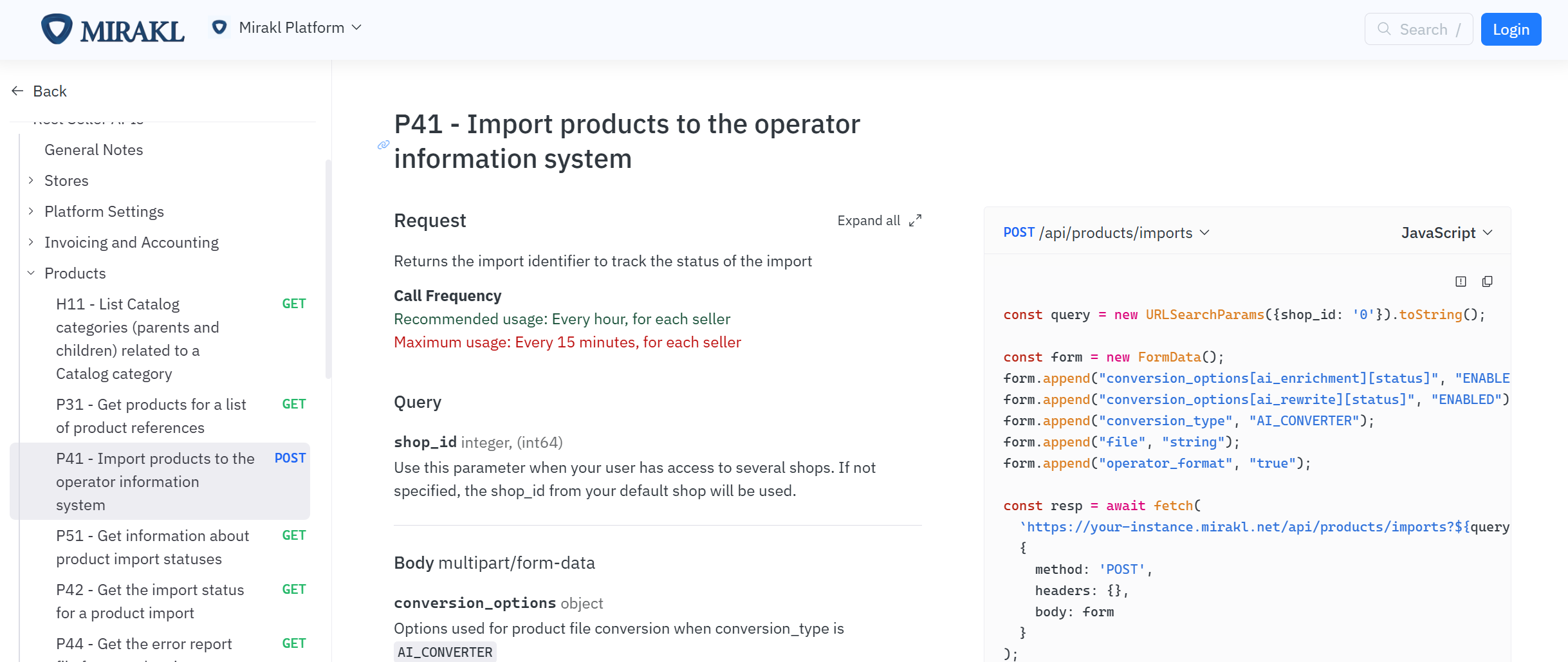
Mirakl offers standardized REST APIs for all sellers across its marketplaces. Lowe’s Marketplace sellers can access the API documentation here: Mirakl Seller API Reference
This page includes:
- Full list of supported endpoints
- Payload schemas and request/response formats
- Status codes and error messages
- Search and filter parameters
Authentication
API access is secured using an API key, which must be included in the header of every request.
To retrieve your API key:
- Log in to the Mirakl Seller Portal
- Click your name in the top right
- Select API Key
- Click Generate New Key or Copy
Treat this key like a password. Never share it publicly or expose it in client-side code.

What Can You Do With the API?
| Functionality | Key Endpoints (examples) | Description |
|---|---|---|
| Offer Management | GET /offers, POST /offers/import | Create or update product availability, pricing, and status |
| Order Flow | GET /orders, POST /shipments | Acknowledge, ship, and invoice orders |
| Inventory Updates | PUT /offers/stock | Update available quantities |
| Messaging | POST /messages | Communicate with Lowe’s if order issues arise |
| Returns | GET /returns, POST /returns/accept | Handle customer return requests |
Most sellers use the API for inventory automation and order tracking, not full catalog import.
When to Use API vs. Excel
| Scenario | Best Method |
|---|---|
| Initial product onboarding | Excel Templates |
| Daily price or quantity updates | API |
| Order fulfillment or shipment | API |
| One-off fixes or small batches | Excel Templates |
If your systems already support API integration, the Mirakl API provides greater control and scalability. However, most new sellers start with Excel uploads before transitioning to API workflows.
Testing & Validation
There is no sandbox environment. All API calls are made directly to the live production environment for Lowe’s Marketplace. Be sure to:
- Validate payloads using the API documentation
- Start with small updates (1–2 SKUs) to monitor responses
- Use logging and error checking to catch issues early
If you're unsure where to start, your Seller Management Specialist can help you identify a supported integration model.
Support
For API issues, use the following support paths:
- Mirakl Developer Help Center
- Work with your in-house dev team or integration partner
- Reach out to your Lowe’s Marketplace point of contact for help coordinating with Mirakl if a platform issue is suspected
Lowe’s Marketplace Tax Policy
topics: Tax, ReturnsAs a seller on Lowe’s Marketplace, it is your responsibility to understand and comply with all applicable tax requirements based on your business location, nexus obligations, and the customer’s shipping destination. This section provides an overview of how tax handling works on the Lowe’s platform, and what’s expected of you as a third-party seller.
Marketplace Facilitator Model
Lowe’s operates under a Marketplace Facilitator tax model in many U.S. states. This means:
- In states where this law applies, Lowe’s collects and remits sales tax on your behalf.
- In states where Marketplace Facilitator laws do not apply, you may be responsible for collecting and remitting sales tax yourself.
Your actual tax responsibility may vary depending on:
- The state(s) you are shipping from
- The state(s) you are shipping to
- Whether Lowe’s is required to collect tax for you in those jurisdictions
If you're unsure whether Lowe’s is collecting tax on your behalf in a given state, refer to your seller tax report or consult your tax advisor.
Nexus and Tax Registration
As a third-party seller, you are responsible for evaluating your nexus obligations (physical presence, economic threshold, etc.) in each state.
Lowe’s does not provide legal or tax advice. However, here are common requirements:
- Registering for a Sales Tax Permit in nexus states (if needed)
- Filing state returns for any sales you are responsible for
- Monitoring state-by-state legislation, which can change frequently
Available Documents and Reports
You may access tax collection information and reports through the Mirakl Seller Portal:
- Order-level tax breakdowns
- Payout reports with tax lines
- Invoices and credit memos for recordkeeping
Your Seller Management Specialist can assist with locating or interpreting these documents but cannot provide tax advice.
Common Questions
Q: Does Lowe’s collect and remit all sales tax for me?
A: In many states, yes — but not all. You are responsible for compliance in states where you are liable.
Q: How do I know what Lowe’s is collecting?
A: Your payout reports and invoices show tax collection at the line-item level. Review these documents monthly.
Q: Who should I contact with questions?
A: Consult a tax professional. Lowe’s cannot offer legal or tax guidance, but your SMS can assist with access to documentation.
Additional Resources
Lowe’s Reference Materials
topics: Attributes, Template, Excel, CategoryThis section contains all the key documents you’ll need to complete your product onboarding successfully. Each file can be downloaded directly and provides critical guidance for listing accuracy, compliance, and content quality across the Lowe’s Marketplace.
These resources are curated specifically for use with the Mirakl Seller Portal and align with Lowe’s expectations for product detail pages, attributes, digital assets, and taxonomy mapping.
You are expected to download and use the materials below as part of the onboarding process.
Available Downloads
| Document Title | Description |
|---|---|
| Asset Specification Guide | Requirements for images, media types, resolution, and naming conventions for digital content uploads. |
| Barcode Types | List of supported barcode formats (e.g., UPCA, EAN13), with usage notes for packaging hierarchy validation. |
| Item Descriptions & Character Limitations | Text field guidelines for title, description, and bullet attributes, including unsupported characters and formatting warnings. |
| Product Title Best Practices – Mirakl | Naming strategies for product titles that improve search visibility and customer conversion. Includes before/after examples. |
| Lowes.com Product Detail Page Guide for Sellers | Visual reference guide mapping elements of a Lowes.com product detail page to corresponding Mirakl fields. Includes optimization tips for images, titles, pricing, and attribute alignment to improve on-site presentation and conversion. |
| Product Categories & Definitions | Categorization guide showing how Lowe’s maps product types to its online taxonomy. Includes definitions and attribute expectations per category. |
| Product Variant Selling (PVS) Guide | Setup guide for grouping product variations (e.g., size, color) into a single product detail page experience on Lowes.com. Includes rules for variant eligibility, examples, and instructions for implementing variants through Mirakl templates or API. |
Content Quality Expectations
You are responsible for ensuring that your product data aligns with Lowe’s marketplace standards. These best practices apply across all templates and categories:
Accurate Titles & Descriptions
- Use complete, consumer-friendly product names
- Avoid filler phrases like “NEW” or “Top Seller”
- Confirm that descriptions match imagery and packaging
Compliant Images & Assets
- Minimum of 3 high-quality images
- White background, product-only — no promotional overlays
- Finalized images only (no placeholders or generic assets)
Attribute Enrichment
- Fill in category-relevant attributes: Finish, Certification, Dimensions, etc.
- These attributes power filtering, faceted search, and on-site navigation
- Higher completion rates lead to better conversion and customer satisfaction
How to Use This Section
- Download each document as needed during onboarding
- Refer to them before uploading your catalog or assets
- Bookmark this page for future reference — specs may evolve over time
If you encounter validation issues during item import, refer to these documents before contacting support.
Legal and Compliance
topics: Tax, ReturnsThis section will include all legal terms, compliance statements, and seller agreement documentation relevant to operating on Lowe’s Marketplace.
Lowe’s is committed to maintaining a safe, secure, and trustworthy experience for both sellers and customers. As such, compliance with platform rules, applicable laws, and digital content standards is required for all third-party sellers.
Coming Soon
We are currently finalizing the following documents for inclusion on this page:
- Lowe’s Marketplace Seller Agreement
- Product Listing & Content Policy
- Restricted Items List
- Brand Usage and IP Guidelines
- Digital Accessibility Standards (ADA/VPAT)
- Regulatory Compliance Requirements (e.g., Prop 65, PFAS)
When these materials are published, you will be notified and directed to review them before continuing with item setup.
General Expectations
In the meantime, please keep in mind the following general policies that apply to all sellers on the Lowe’s Marketplace:
- Do not list prohibited or restricted products (see Prop 65 or PFAS guidance)
- Ensure all images and descriptions are original or properly licensed
- Maintain full compliance with all applicable federal, state, and local laws
- Provide truthful, non-deceptive information in product listings
Lowe’s reserves the right to remove listings or suspend seller accounts that violate content standards or legal policies.
Placeholder Notes
If legal language is required in future updates, this section will also house:
- Required disclaimers
- Policy change acknowledgments
- Formal revision history (version-controlled content)